Last Updated
September 25, 2026
How to Add Affiliate Links to Instagram Reels (Without Link in Bio)
Affiliate Marketing
Send viewers from the product they see in your Reel to the affiliate destination that matches it.
A useful product demonstration can leave viewers ready to learn more. Make that next step easy to understand: name the exact item, explain where the link leads, and choose a route your audience can use. This guide compares the main options and shows how to add a trackable affiliate QR code to a Reel.
Quick Answer
To add an affiliate link to an Instagram Reel without using your bio, place a QR code linked to the affiliate product or a curated collection page inside the video. Export the Reel, test the code, and publish it with a clear CTA and affiliate disclosure. A QR is scannable, not a clickable hyperlink embedded in the video. Story links, DMs, and eligible Instagram commerce features are other options.

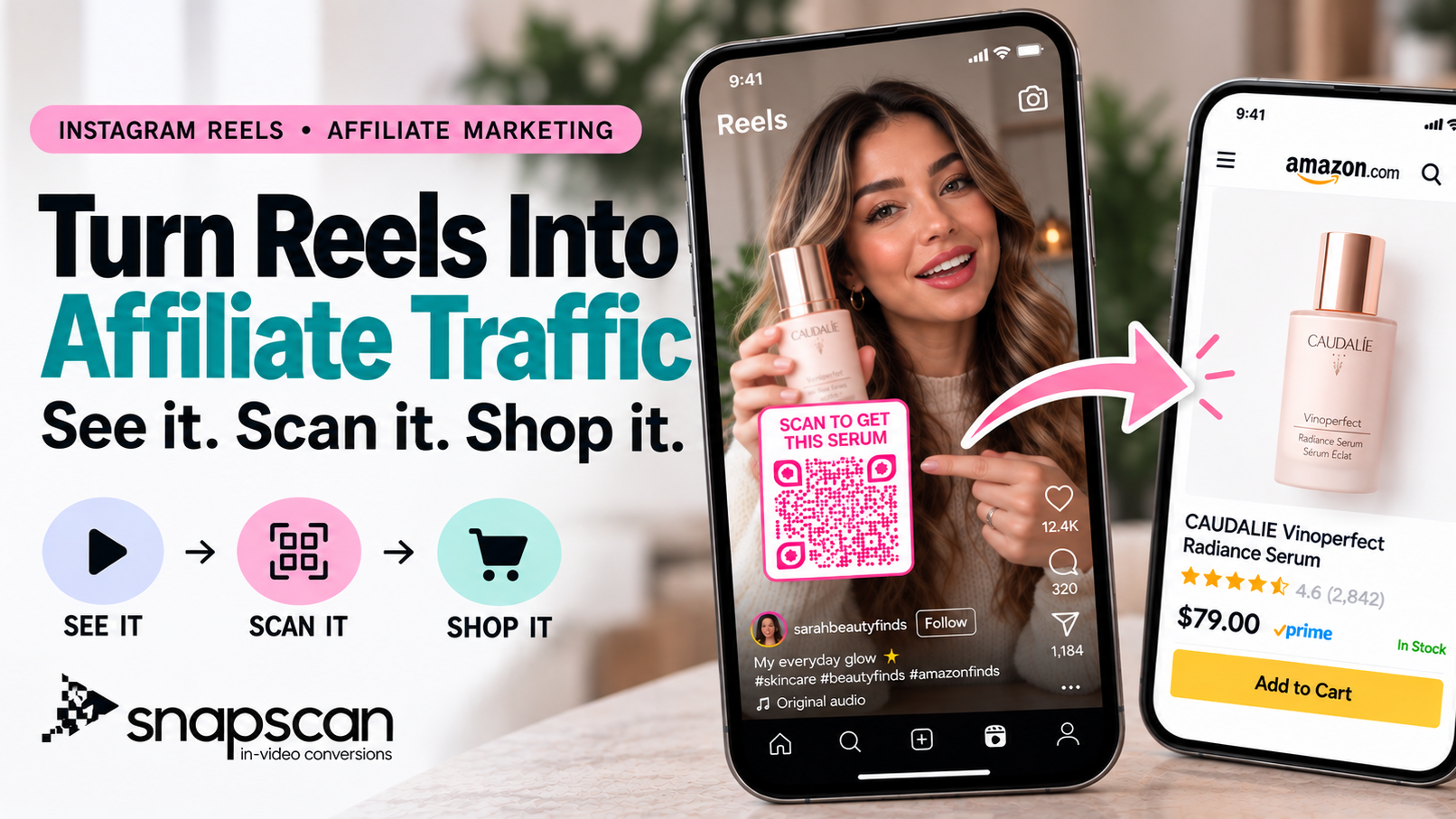
Figure 1: An affiliate product recommendation becomes a direct scan to the exact product page.
Main Ways to Share Affiliate Links from Reels
Choose the route around the viewer’s task. A single-product review needs a precise destination; an outfit or roundup may need a collection. These methods can work together, and none guarantees more clicks or sales. Check the features available in your account and your affiliate program’s link rules.
Link in bio
Keep the featured product or a clearly named collection near the top of your profile links. This is useful for an evergreen catalog and gives viewers a familiar fallback. The tradeoff is navigation: they must open your profile and identify the right item. Match the link label and thumbnail to the Reel, especially when you publish frequently.
Story link sticker
Share the Reel to a Story and add a link sticker pointing to the relevant affiliate destination, where available. It gives Story viewers a tappable route, but viewers discovering the original Reel still need to reach the Story. Use a descriptive sticker label, include disclosure, and keep time-sensitive offers current.
DM or comment automation
Invite viewers to request the link with a clear keyword, such as “Comment SHADE for the lipstick.” A supported messaging tool can deliver the destination by DM after setup. This can suit audiences who like asking questions, but it adds a request-and-message step. Test delivery and follow Instagram’s messaging rules; a comment itself is not the affiliate destination.
Instagram commerce features where available
Eligible accounts may have product-tagging or other shopping features for supported catalogs and markets. If available, these can connect the content with product information inside Instagram. Check your account’s current eligibility and whether the setup supports your intended affiliate relationship. A product tag does not automatically mean you earn a commission.
In-video QR code
Place a QR code in the video that leads to the exact product or a matching collection. It keeps the destination visible beside the recommendation and can also be scanned from another device. Same-phone viewers need a supported QR recognition method, so show brief instructions. Plan for legibility and test the finished video.
For more context on the profile-link journey, read Best Link in Bio Alternative for TikTok, Reels and Shorts.
5 Real Affiliate Reel Examples
These are practical example concepts, not documented creator campaigns or performance case studies. Each connects a specific demonstration, destination, and CTA; adapt the claims to your own experience with the product.
Beauty: Show the exact shade or tool
Film a lipstick wear test in consistent light, name the shade, and show the finish close up. Link to the same product and shade where the retailer supports it; otherwise tell viewers which option to select. CTA: “See this lipstick and shade.” For a styling-tool tutorial, show the result before inviting viewers to open the tool’s product page.
Fashion: Build an LTK or ShopMy outfit collection
Style one blazer three ways and label each look. Send viewers to a curated LTK or ShopMy outfit page with recognizable photos and clear item names. CTA: “Shop the pieces in these looks.” If the Reel focuses on the blazer alone, use its product destination. Note sizing details you can substantiate and identify any substitute separately.
Amazon and home: Demonstrate a specific problem solved
Show a drawer before and after adding an adjustable organizer, then demonstrate how it fits. Link to the exact Amazon listing using the affiliate link supplied by your program. CTA: “See the organizer and dimensions.” For a three-item kitchen roundup, use a named collection that lists only those recommendations in the same order as the video.
Tech: Let the demonstration explain the recommendation
Record a microphone comparison with consistent recording conditions and label the models on screen. Use a concise comparison page with a separate affiliate link for each model, or create one cutdown per microphone. CTA: “Compare these microphones.” Include compatibility details so viewers can check whether the recommended model works with their phone or camera.
Fitness and travel: Link the gear used in the routine
Demonstrate a compact resistance-band routine for a hotel room and identify the band set you actually use. Link to that set, or to a small travel-workout collection if the Reel also features a mat and bag. CTA: “See my travel workout kit.” Describe the equipment honestly without promising fitness outcomes or claiming it suits everyone.
How to Add an Affiliate QR Code to an Instagram Reel
Once you choose the in-video QR route, SnapScan provides a way to add the code to a video and track scans. Keep the workflow focused on one destination and one clear action.
How SnapScan helps with the setup
SnapScan brings the destination link, QR design, placement, appearance timing, and video export into one workflow. Its platform-specific safe areas help you position the QR away from interface elements when preparing content for Instagram Reels, TikTok, YouTube Shorts, or Facebook Reels. Start with the relevant safe-zone template, then adjust the position around your product, face, and subtitles. The platform guides help with interface clearance; you still need to check the composition of your own video.
You can customize the QR and its CTA, choose when it appears, and download the finished video for publishing. After posting, scan tracking adds a measurable next-step signal alongside your view counts. This helps you review whether viewers use the code and decide what to test next.
1- Choose and check the destination
Copy the affiliate link supplied by your program. Open it on mobile and check the product, variant, availability, and disclosure requirements. Confirm that the program permits your planned QR and redirect use.
2- Add the link and prepare the QR
Add the destination in SnapScan and customize the QR and CTA. Use a specific instruction such as “See the exact organizer.” Choose a label you can recognize when reviewing scan activity.
3- Upload the Reel and set placement
Upload the video and use SnapScan’s Instagram Reels safe-area template as your starting point. Adjust the QR so it also clears your product, subtitles, and disclosure, then choose when it appears. If you repurpose the clip for another platform, check placement against that platform’s safe area before exporting.
4- Export and test
Generate and download the video. Test the exported QR on a second device and with same-phone scanning. Confirm that the correct destination opens and the affiliate link remains intact through the redirect.
5- Publish and review
Upload the finished video as a Reel with a matching caption. Check the published version, then compare scans with Instagram views over the same reporting period.
Live Affiliate Products Demo
See how the in-video QR experience is presented: Open the live Affiliate Products Demo. Use it as a concrete example while planning your own product Reel.
How Viewers Open the QR on the Same Phone
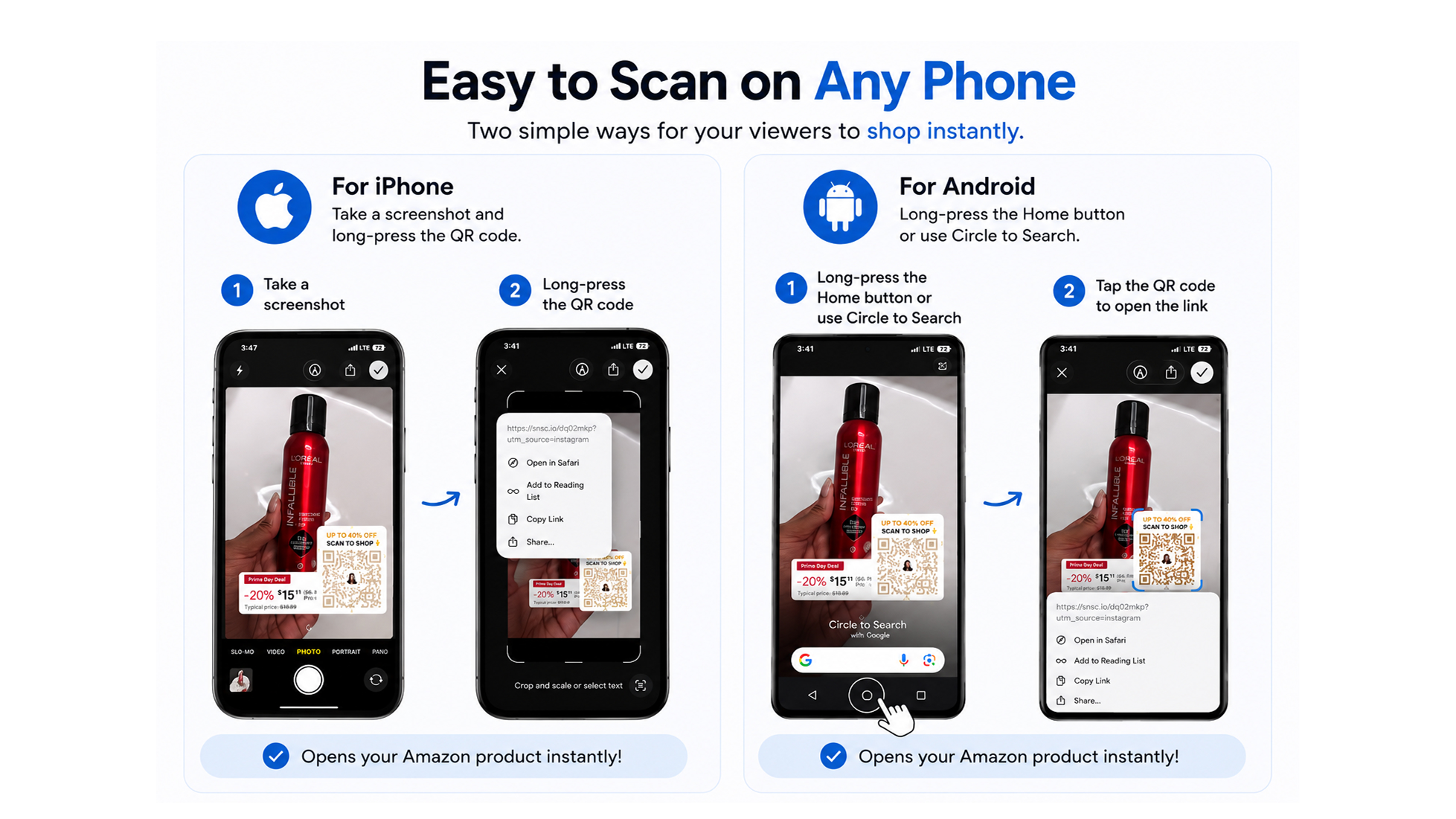
iPhone: Screenshot → long press the QR → open the link.
Open the screenshot in Photos before long pressing the QR.
Android: Long press home button → open the link
The Android shortcut applies to supported devices with Circle to Search enabled. With gesture navigation, long press the navigation handle instead. If QR recognition is unavailable, open a screenshot in Google Lens.
See the same-phone scanning guides for additional help.
Choosing the Right Destination and CTA
For one product, use the exact item page. For several products, use a curated comparison or collection page with matching names, photos, and order. Keep the list short enough that viewers can immediately recognize what they saw. Use separate product-specific cutdowns when each recommendation needs its own destination.
For example, a “Three desk upgrades” Reel can send one QR to a page listing the cable organizer, desktop drawer, and earbuds. Each item has its own affiliate link. Alternatively, publish three cutdowns, each with one product and its matching QR. This approach does not require a code to switch destinations as different products appear.
| Reel moment | Best destination | Example CTA |
| Single product recommendation | Exact affiliate product page | Shop this product |
| Limited-time promotion | Tracked campaign or offer page | Get the deal |
| Three-product comparison | Matching comparison page | See my recommendation |
| Tutorial featuring a tool | Exact tool or resource page | Get the tool I used |
| Creator coupon | Brand landing page with offer details | Use my code |
Check the destination after publishing, especially for deal content. Remove expired offer wording or update a collection you control. Only promise a discount when the retailer’s current terms support it; do not imply a coupon applies automatically unless you have tested that behavior.
How to Place the QR Without Hurting the Reel
Use strong contrast and a clear margin around the QR. Keep it away from faces, product details, captions, and Instagram’s controls. Introduce it when the benefit is clear and leave enough time for viewers to notice, read the CTA, and scan or capture a screenshot. Timing depends on the pace and complexity of the Reel; there is no universal five-second minimum.
Test the published video at normal phone size. For safe areas, sizing, and detailed examples, read the QR code placement guide for short videos.
Track the Reels That Actually Drive Action
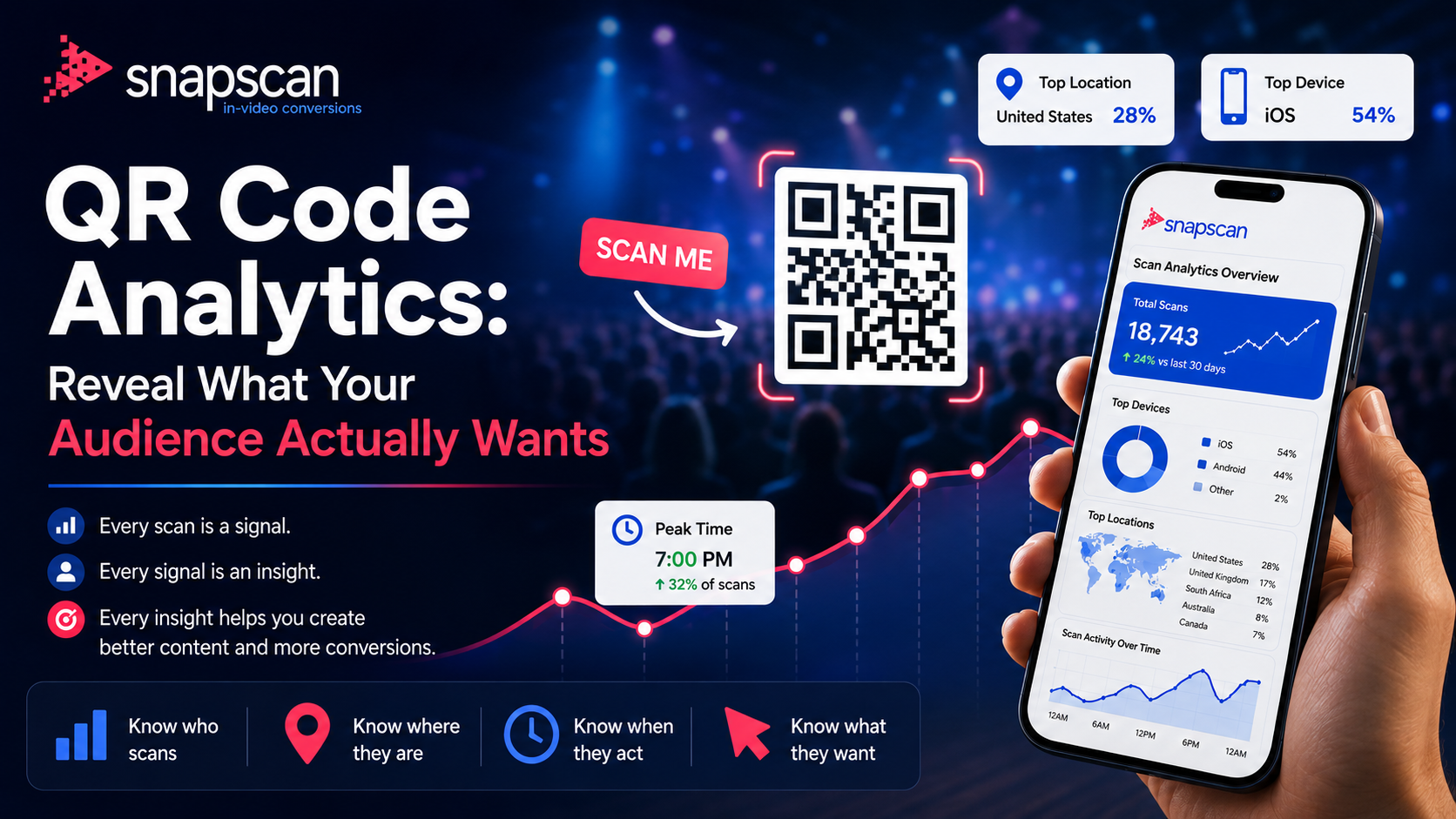
Compare reach and response separately. Views show how often a Reel was viewed; QR scans record use of the code. Track each Reel separately where possible and use the same reporting window. Calculate scans per 1,000 views as scans ÷ views × 1,000.
Illustrative example — hypothetical numbers, not SnapScan results or benchmarks
Reel A, a broad favorites roundup: 50,000 views and 100 scans = 2 scans per 1,000 views. Reel B, a focused product tutorial: 10,000 views and 60 scans = 6 scans per 1,000 views.
Reel A generates more total scans; Reel B generates more scans relative to its view count. That makes the tutorial worth testing again, not proof that tutorials always outperform roundups. Audience, product, offer, timing, and placement could all affect the result.
Scans are not purchases, and views are not necessarily unique viewers. Repeat activity can affect both counts. Use the affiliate network’s reporting to assess attributable orders and commission, and keep that separate from scan activity. Change one element at a time when testing a CTA or placement so comparisons are easier to interpret.
For more on reading scan activity, see the QR analytics guide. Available detail may depend on your plan.
Affiliate Disclosure Still Matters
Make the commission relationship clear near the recommendation. For example: “I earn a commission if you buy through this link.” The FTC advises placing disclosures in the video, not only in the description; visual and spoken disclosure together can make the relationship easier to notice. Keep on-screen wording readable and repeat it in the caption where appropriate.
A QR code, coupon, or platform disclosure tool does not replace a clear explanation of the relationship. Follow the disclosure rules and affiliate-program terms that apply to your content and audience. See the FTC guidance in the references.
Frequently Asked Questions
Can I make the affiliate URL clickable inside the video
Text burned into a Reel is not a clickable hyperlink. A QR code offers a scannable route. Check the native linking or commerce features available to your account if you want a tappable option.
Do viewers need a second phone
No, supported phones can recognize a QR from a screenshot or through screen search. Use the iPhone and Android instructions Scanning QR Codes from Videos, and test them on the devices your audience uses.
What if the Reel features several products
Use one QR to a curated collection or comparison page, or make separate product-specific cutdowns. Keep the destination consistent with the visible CTA.
How long should the QR stay on screen
Give viewers time to understand the offer and scan or take a screenshot. A slower explanation may need a longer hold than a familiar product reveal. Test the timing instead of treating a fixed number of seconds as a universal rule.
Does a scan mean I earned a commission
No. A scan is an action on the QR. Commission depends on the affiliate program’s attribution rules and qualifying purchases, which you should review in the program’s reporting.
References
[1] SnapScan - Best Link in Bio Alternative for TikTok, Reels and Shorts
[2] SnapScan - Where to Place a QR Code in Short Videos for Maximum Conversions
[3] SnapScan - How to Increase Video Conversions Without Using Link in Bio
[4] SnapScan - How QR Code Analytics Reveal What Your Audience Actually Wants
[5] SnapScan - Affiliate Products Demo
[6] Federal Trade Commission - Disclosures 101 for Social Media Influencers
[7] Federal Trade Commission - Endorsement Guides What People Are Asking
[8] Google — Search your screen with Circle to Search
[9] SnapScan — Scanning QR Codes from Videos
Your Reel already creates the buying intent. Give viewers a direct next step.
Add a trackable QR with SnapScan so viewers can open the affiliate product or collection that matches your Reel, then review scan activity to see which videos prompt a next step.
Free trial. No credit card required.
Related Blogs

Analytics & Attribution
August 12, 2026
YouTube Shorts Conversion Tracking: Know Which Video Drives Sales